
In today’s interconnected world, managing multiple devices on a single network while maintaining optimal gaming performance is a common challenge. From smart TVs and laptops to smartphones and gaming consoles, a typical household often runs several devices simultaneously. To ensure seamless gaming without interruptions, here’s a guide to managing your network effectively.
Prioritize Gaming Traffic with QoS
Quality of Service (QoS) is a critical feature found in most modern routers. It allows you to allocate bandwidth to specific devices or applications. For example:
- Assign higher priority to your gaming console or PC to minimize lag.
- Set lower priority for devices used for streaming or browsing.
Steps to enable QoS:
- Access your router’s admin panel (usually via an address like
192.168.0.1or a designated URL). - Locate the QoS settings, typically under “Advanced Settings.”
- Add your gaming device’s IP address or MAC address and prioritize it.
Use Dual-Band or Tri-Band Routers
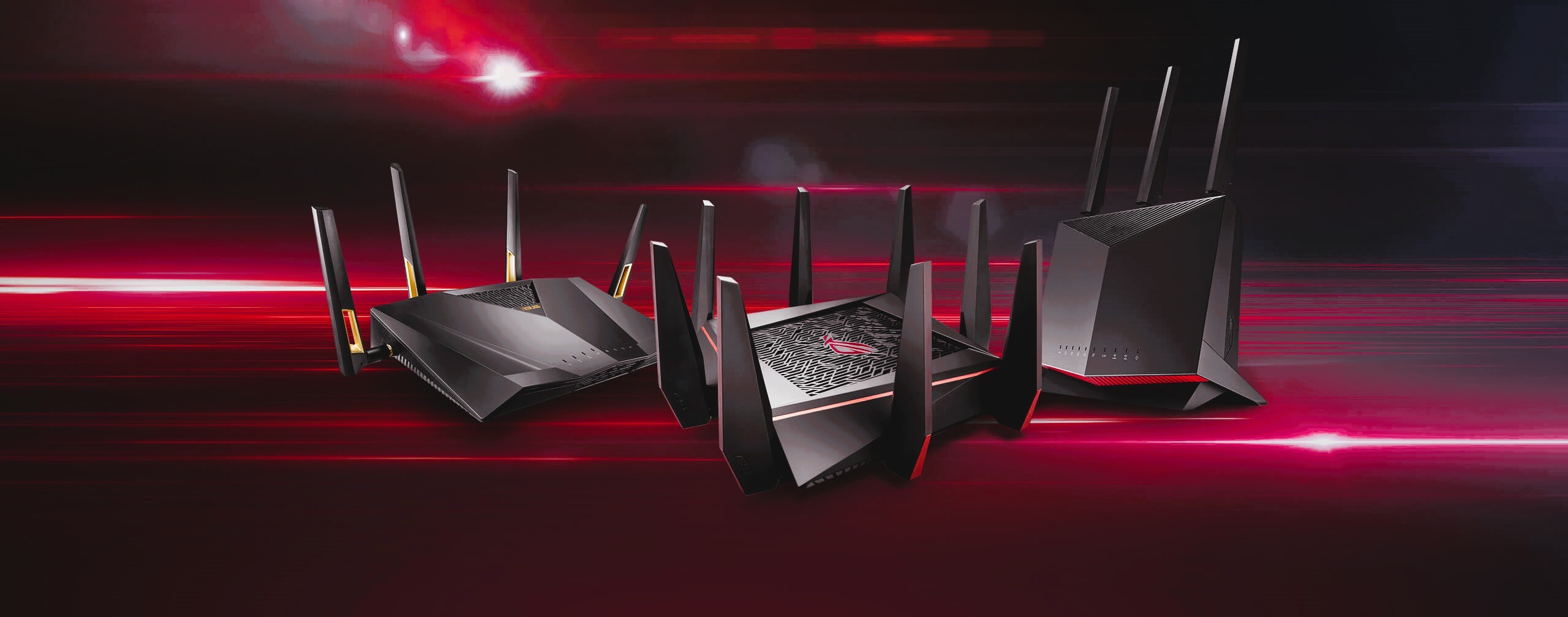
If you’re juggling multiple devices, a dual-band or tri-band router can be a game-changer. These routers separate devices into different frequency bands (e.g., 2.4 GHz and 5 GHz), reducing interference and congestion.
- 2.4 GHz Band: Ideal for older devices or those far from the router.
- 5 GHz Band: Provides faster speeds for gaming and streaming when closer to the router.
For gaming households, tri-band routers offer an additional 5 GHz band, perfect for high-demand activities. Like our article? Read also about Strengthening the security of your game account.
Implement Wired Connections for Gaming
While Wi-Fi is convenient, a wired Ethernet connection offers superior stability and lower latency.
- Use Ethernet cables for gaming consoles and PCs whenever possible.
- If wiring isn’t feasible, consider a powerline adapter or a mesh Wi-Fi system to extend your network’s reach.
Optimize Your Network for Peak Hours
During peak hours, your network might slow down due to increased usage. To maintain smooth gaming performance:
- Schedule downloads and updates during off-peak times.
- Limit background activities like cloud backups or large file uploads.
Regularly Update Firmware

Outdated router firmware can lead to inefficiencies in managing multiple devices. Regular updates ensure your router is equipped with the latest features and security enhancements.
How to update:
- Log into your router’s admin panel.
- Navigate to the firmware update section and check for updates.
- Follow the on-screen instructions to install.
Monitor Device Usage
Use your router’s device management feature to monitor bandwidth consumption. Identify devices consuming excessive bandwidth and limit their usage. Some advanced routers even allow you to pause connections temporarily.
Enable Guest Networks
To prevent visitors from competing for bandwidth, set up a guest Wi-Fi network. This keeps your primary network dedicated to household devices and gaming.
Managing multiple devices and gaming connections simultaneously doesn’t have to be a struggle. By leveraging advanced router features like QoS, using dual or tri-band routers, and optimizing network settings, you can enjoy lag-free gaming even in a busy household.
For more insights on networking and gaming, explore the IGN Gaming Guides.